MSEdgeExplainers
PWA-driven Widgets Explainer
Author: Aaron Gustafson
Status of this Document
This document is a starting point for engaging the community and standards bodies in developing collaborative solutions fit for standardization. As the solutions to problems described in this document progress along the standards-track, we will retain this document as an archive and use this section to keep the community up-to-date with the most current standards venue and content location of future work and discussions.
- This document status: Active
- Expected venue: W3C Web Incubator Community Group
- Current version: this document
Introduction
Native applications can expose information and/or focused tasks within operating systems using widgets. Examples of this include Android Home Screen Widgets, macOS Dashboard and Today Panel Widgets, the Apple Touch Bar, Samsung Daily Cards, Mini App Widgets, smart watch app companions, and so on. When building Progressive Web Apps, it would useful to be able to project aspects of the web app onto these surfaces.
Goals
- Enable developers to build lightweight, template-driven PWA-driven Widgets.
- Enable developers to configure widgets using the Web App Manifest.
- Enable developers to update widgets from their Service Worker.
- Enable developers to respond to user interaction within their widgets from within their Service Worker.
- Enable support for multiple widget hosts within a host operating system.
- Enable users to have multiple instances of a given widget (optionally, with distinct settings values).
Non-goals
- Enable developers to designate a web page to act as a Widget (see Rich Widgets in my original proposal).
Use Cases
- A streaming video service could offer access to all of the shows or movies you have in your queue that is distinct from the actual player. It might live in a widget on one device, but, with access to all of the plumbing of the PWA itself, could enable users to control the services’ PWA running on the user’s smart TV.
- A stock tracking app could offer a widget for viewing current stock prices for stocks you are watching.
- A calendar service could provide a daily agenda at a glance.
Definitions
Nouns
- Widget
-
A discrete user experience that represents a part of a website or app’s functionality. Refers to the prototypical definition of an experience (e.g., follow an account), not the individual representations of this widget (e.g., follow bob) that exist in a Widget Host.
- Widget Host
-
A container that manages and renders widgets.
- Widget Instance
-
The interactive experience of a Widget within a Widget Host. Multiple instances of a Widget may exist within a Widget Host. These distinct instances may have associated settings.
- Widget Settings
-
Configuration options, defined on a Widget and unique to a Widget Instance, that enable that instance to be customized.
- Widget Provider
-
An application that exposes Widgets. A browser would likely be the Widget Provider on behalf of its PWAs and would act as the proxy between those PWAs and any Widget Service.
- Widget Registry
-
The list of installable Widgets registered by Widget Providers.
- Widget Service
- Also: Widget Platform
-
Manages communications between Widget Hosts and Widget Providers.
Verbs
- Install
- Also: Instantiate
-
Create a Widget Instance.
- Register
-
Add a Widget to the Widget Registry.
- Uninstall
-
Destroy a Widget Instance.
- Unregister
-
Remove a Widget from the Widget Registry.
- Update
-
Push new data to a Widget Instance.
Templated Widgets
In order to provide a lightweight experience, this proposal suggests that Widgets be template-driven, similar to Notifications. Templated widgets may be more limited in their customization through use of the PWA’s icons, theme_color, and background_color or they may be customizable through use of a templating language (such as Adaptive Cards). A Widget Host should provide a set of common templates — such as an agenda, calendar, mailbox, task list — but its complete list of available templates will likely vary. This proposal suggests this list of widgets template types as a reasonable starting point.
Suggested template types
For social and productivity apps:
- calendar-agenda
- calendar-day
- calendar-week
- calendar-month
For address books, directories, and social apps:
- contacts-list
- contacts-item
For general purposes (e.g., news, promotions, media, social):
- content-carousel
- content-feed
- content-item
For productivity apps:
- email-list
- task-item
- task-list
For auth-requiring Widgets:
- login-prompt
A selection of template samples, composed using Adaptive Cards, accompany this Explainer.
Data flow
Widgets support user interaction through one or more developer-defined WidgetAction objects, which are analogous to a NotificationAction.
Data flow in a Templated Widget is largely managed in two ways:
- Data flows from the Service Worker to a Widget instance as part of the
widgets.updateByInstanceId()andwidgets.updateByTag()methods. - Data (in the form of interaction) flows from a Widget to the associated PWA’s Service Worker via a
WidgetEvent.
Here is an example of how this might look in the context of a Periodic Sync:
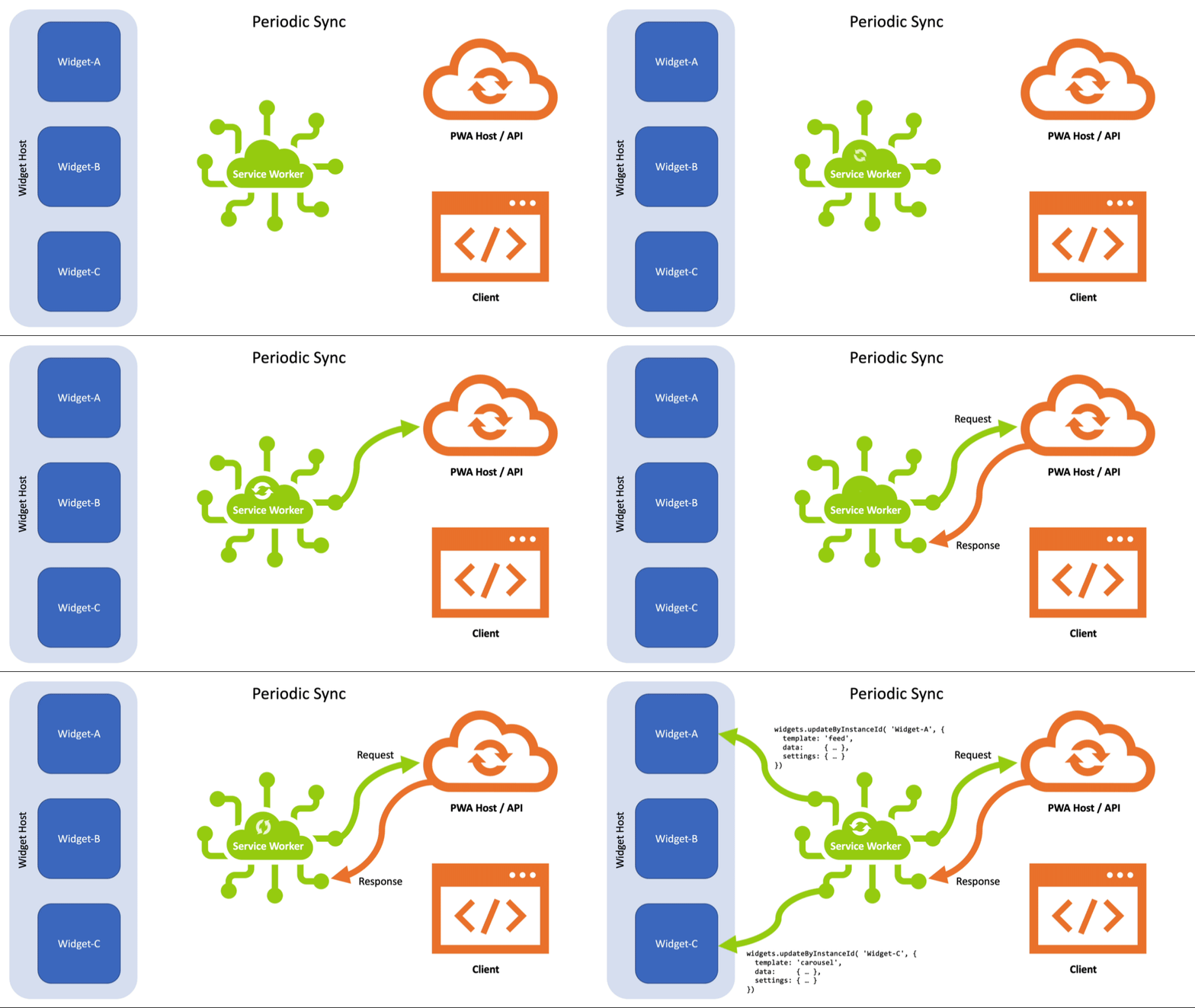
This video shows the following steps:
- As part of a Periodic Sync, the Service Worker makes a
Requestto the host or some other endpoint. - The
Responsecomes back. - As the Service Worker is aware of which widgets rely on that data, via the
WidgetDefinitionprovided during install, the Service Worker can identify which widgets need updating. (This is internal logic and not shown in the video). - The Service Worker takes that data — perhaps packaging it with other instructions — and uses
widgets.updateByInstanceId()(orwidgets.updateByTag()) to update the specific widgets that make use of that data.
To show a more complicated example, consider what should happen if certain Widgets depend on authentication and the user happens to log out in the PWA or a browser tab. The developers would need to track this and ensure the Service Worker is notified so it can replace any auth-requiring Widgets with a prompt back into the app to log in.
Here’s how that might work:
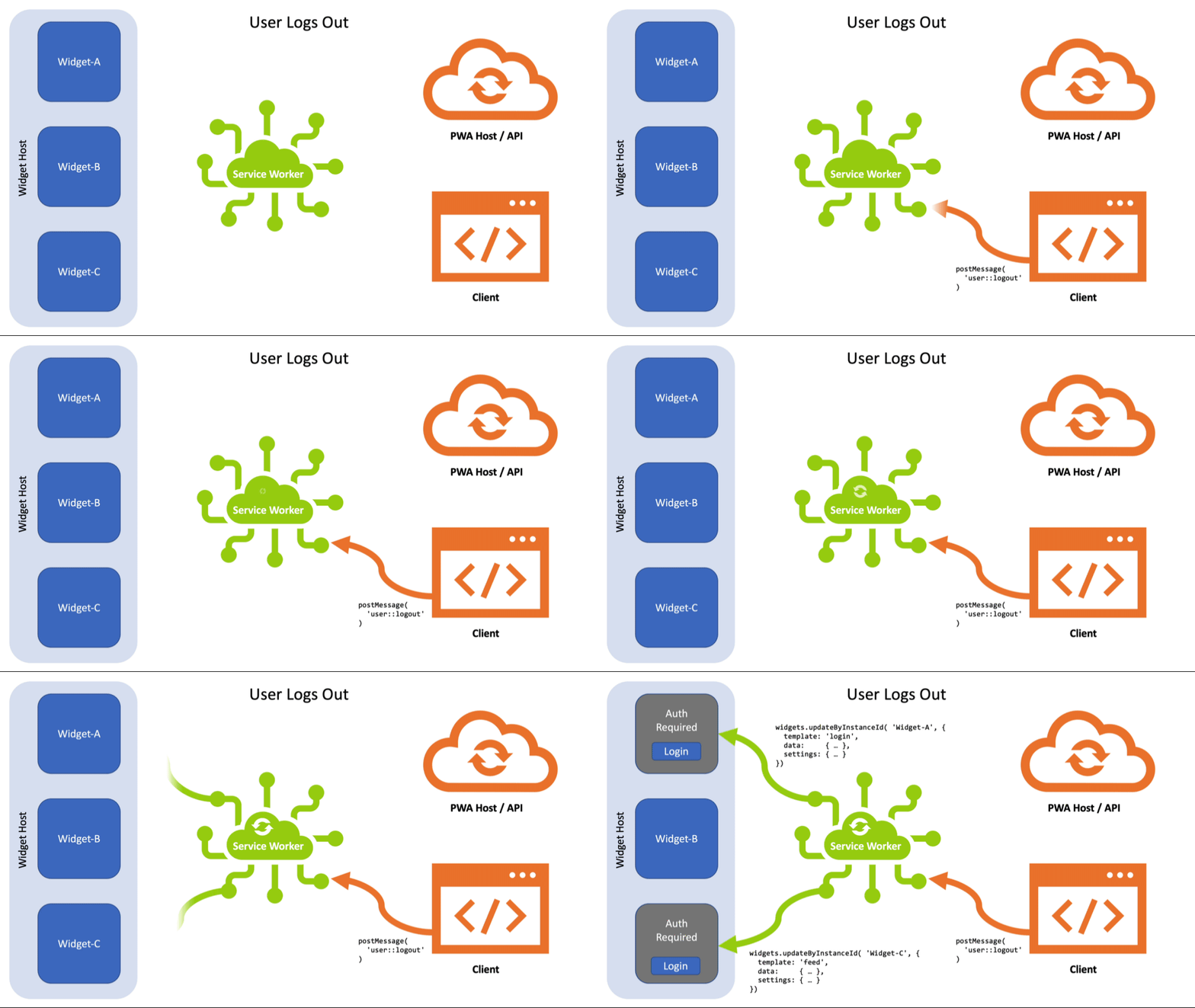
This video shows:
- The user logging out from the context of a
Client. When that happens, theClient, sends apostMessage()to the Service Worker, alerting it to the state change in the app. - The Service Worker maintains a list of active Widgets and is aware of which ones require authentication (informed by the
authproperty of theWidgetDefinition). Knowing auth has been revoked, the Service Worker pushes a new template to each auth-requiring Widget with a notice and a button to prompt the user to log in again.
The next step in this flow is for the user to log back in. They could do that directly in the Client, but let’s use the WidgetAction provided in the previous step:
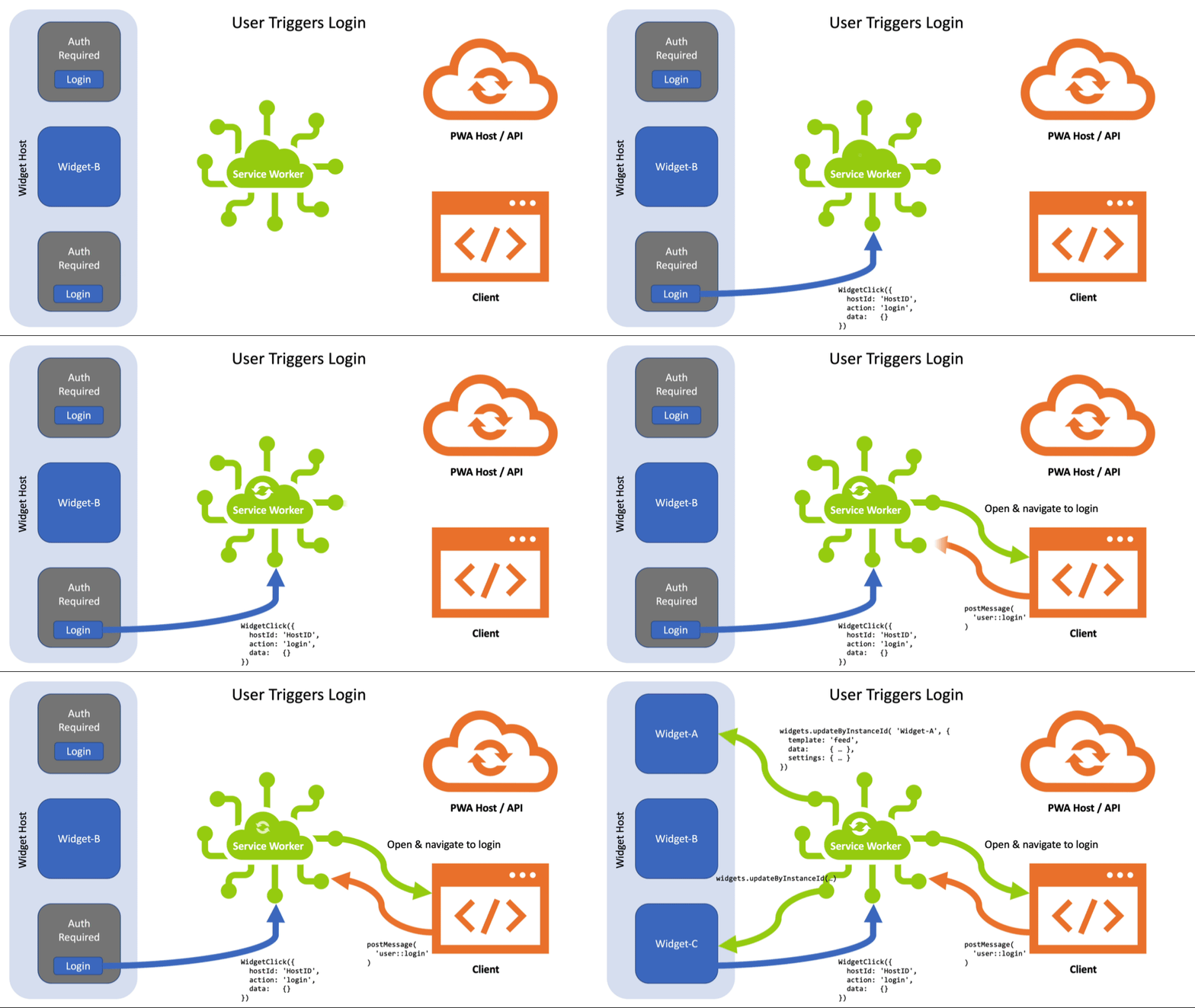
This video shows:
- The user clicking the "Login" action in the Widget. This triggers a
WidgetEventnamed "login". - The Service Worker is listening for that action and redirects the user to the login page of the app, either within an existing
Client(or in a newClientif one is not open). - The user logs in and the app sends a
postMessage()to the Service Worker letting it know the user is authenticated again. - The Service Worker grabs new data for its auth-related widgets from the network.
- The Service Worker pipes that data back into the auth-requiring Widgets using
widgets.updateByInstanceId()(orwidgets.updateByTag()).
You can see more examples in the WidgetEvent section.
Defining a Widget
One or more Widgets are defined within the widgets member of a Web App Manifest. The widgets member would be an array of WidgetDefinition objects.
Sample WidgetDefinition Object
{
  "name": "Agenda",
  "description": "Your day, at a glance",
  "tag": "agenda",
  "template": "agenda",
  "data": "/widgets/data/agenda.ical",
  "type": "text/calendar",
  "auth": true,
  "multiple": false,
  "update": 900,
  "actions": [ ],
  "settings": [ ],
  "icons": [ ],
  "screenshots": [ ],
  "backgrounds": [ ]
}
Required properties
name-DOMString. Serves as the title of the Widget that should be presented to users.tag-DOMString. Serves as a way to reference the widget within the Service Worker as aWidgetClientand is analogous to a Notificationtag.WidgetClientstill needs to be defined, but would be similar toWindowClient.template- the template the developer would like the Widget Host to use; if unsupported, the host may offer an analogous widget experience (determined using thetypevalue) or the widget would not be offered.data- theURLwhere the data for the widget can be found; if the format is unsupported, the widget would not be offered.type- the MIME type of the data feed for the widget; if unsupported, the widget would not be offered.
Optional business logic properties
auth- Boolean. Informational. Whether or not the Widget requires auth. False if not included.multiple- Boolean. Whether or not the multiple instances of this widget are allowed, on a per widget host basis. False if not included.update- Unsigned Integer. Informational. The frequency (in seconds) a developer wishes for the widget to be updated; for use in registering a Periodic Sync. The actual update schedule will use the Service Worker’s Periodic Sync infrastructure.actions- An array ofWidgetActionobjects that will be exposed to users (if the template supports them) within an action-supporting template and trigger an event within the origin’s Service Worker.settings- A array ofWidgetSettingDefinitionobjects that enable multiple instances of the same widget to be configured differently within a Widget Host (e.g., a weather widget that displays a single locale could be installed multiple times, targeting different cities).
Optional Display-related properties
short_name-DOMString. An alternative short version of thename.description-DOMString. A description of what the widget does or its purpose.icons- an array of alternative icons to use in the context of this Widget; if undefined, the Widget icon will be the chosen icon from the Manifest’siconsarray.backgrounds- an array of alternative background images (asImageResourceobjects) that could be used in the template (if the Widget Host and template support background images).
A Manifest’s theme_color and background_color, if defined, may also be provided alongside this data.
Promotional properties
screenshots-Array. Analogous to thescreenshotsmember of the Manifest. It is an array ofImageResourceobjects with optionalplatformvalues that can associate the screenshot with how it shows up in a specific Widget Host. Developers should be sure to include alabelvalue in eachImageResourceobject for accessibility.
Extensibility
Some widget platforms may wish to allow developers to further refine a Widget’s appearance and/or functionality within their system. We recommend that those platforms use the extensibility of the Manifest to allow developers to encode their widgets with this additional information, if they so choose.
For example, if using something like Adaptive Cards for rendering, a Widget Host might consider adding something like the following to the WidgetDefinition:
"ms_ac_template": "/widgets/templates/agenda.ac.json",
This could be used to override the template value in scenarios where the Widget Host supports this feature.
Defining a WidgetAction
A WidgetAction uses the same structure as a Notification Action:
{
  "action": "create-event",
  "title": "New Event",
  "icons": [ ]
}
The action and title properties are required. The icons array is optional but the icon may be used in space-limited presentations with the title providing its accessible name.
When activated, a WidgetAction will dispatch a WidgetEvent (modeled on NotificationEvent) within its Service Worker. Within the Service Worker, the event will contain a payload that includes a reference to the Widget itself and the action value.
Defining a WidgetSettingDefinition
A WidgetSettingDefinition defines a single field for use in a widget’s setting panel.
{
  "label": "Where do you want to display weather for?",
  "name": "locale",
  "description": "Just start typing and we’ll give you some options",
  "type": "autocomplete",
  "options": "/path/to/options.json?q=",
  "default": "Seattle, WA USA"
}
Breaking this down:
labelis the visible text shown to the end user and acts as the accessible label for the field.nameis the internal variable name used for the field (and is the key that will be sent back to the PWA).descriptionis the optional accessible description for a field, used to provide additional details/context.typeis the field type that should be used. Support for the following field types are recommended:- Basic text field types: "text" || "email" || "password" || "number"
- One of many selection (requires
options): "boolean" || "radio" || "select" - Many of many selection (requires
options): "checkbox" - Temporal: "date" || "datetime"
- Auto-complete (requires
options): "autocomplete"
optionsis used for specific fieldtypes noted above. It can be either an array of options for the field or a URL string referencing an endpoint expected to return an array of values. If the list is dynamic (as in the case of an "autocomplete" field), the URL endpoint may be passed the currentvalueof the field via the reference "".defaultis the optional default value for the setting.
Registering Available Widgets
In order for Widget Hosts to be aware of what widgets are available for install, the available widgets must be added to the Widget Registry in some way. That registration should include the following details from the Web App Manifest and the Widget itself:
- manifest["name"]
- manifest["short_name"] (optionally)
- manifest["icons"] (optionally)
- manifest["lang"]
- manifest["dir"]
- manifest["theme_color"] (optionally)
- manifest["background_color"] (optionally)
- widget["name"]
- widget["short_name"] (optionally)
- widget["icons"] (optionally)
- widget["screenshots"] (optionally)
The steps for parsing widgets from a Web App Manifest with Web App Manifest manifest:
- Let widgets be a new list.
- Let collected_tags be a new list.
- Run the following steps in parallel:
- For each manifest_widget in manifest["widgets"]:
- If manifest_widget["tag"] exists in collected_tags, continue.
- Let widget be a new object.
- Set widget["definition"] to the value of manifest_widget.
- Set widget["instances"] to an empty array.
- Set widget["installable"] to the result of determining widget installability with manifest_widget, manifest, and Widget Host.
- If widget["installable"] is true
- Run the steps necessary to register manifest_widget with the Widget Registry, with any useful manifest members.
- Add manifest_widget["tag"] to collected_tags.
- Add widget to widgets.
- For each manifest_widget in manifest["widgets"]:
- Store a copy of widgets for use with the Service Worker API.
The steps for determining install-ability with WidgetDefinition widget, Web App Manifest manifest, and Widget Host host are as follows:
- If host requires any of the above members and they are omitted, classify the Widget as uninstallable and exit.
- If widget["template"] and widget["data"] are omitted, classify the Widget as uninstallable and exit.
- If widget["template"] is not an acceptable template generic name according to host, classify the Widget as uninstallable and exit.
- If widget["type"] is not an acceptable MIME type for widget["data"] according to host, classify the Widget as uninstallable and exit.
- If host has additional requirements that are not met by widget (e.g., required
WidgetDefinitionextensions), classify the Widget as uninstallable and exit. - Classify the widget as installable.
Service Worker APIs
This proposal introduces a widgets attribute to the ServiceWorkerGlobalScope. This attribute references the Widgets interface (which is analogous to Clients) that exposes the following Promise-based methods:
getByTag()- Requires an tag that matches a Widget’stag. Returns a Promise that resolves to aWidgetor undefined.getByInstanceId()- Requires an instance id that is used to find the associatedWidget. Returns a Promise that resolves to aWidgetor undefined.getByHostId()- Requires an host_id that matches a Widget’shost. Returns a Promise that resolves to an array of zero or moreWidgetobjects.matchAll()- Requires anoptionsargument. Returns a Promise that resolves to an array of zero or moreWidgetobjects that match theoptionscriteria.updateByInstanceId()- Requires an instanceidand a payload Object. Returns a Promise that resolves to undefined or Error.removeByInstanceId()- Requires an instanceid. Returns a Promise that resolves to undefined or Error.updateByTag()- Requires an tag and a payload Object. Returns a Promise that resolves to undefined or Error.removeByTag()- Requires an tag. Returns a Promise that resolves to undefined or Error.
Each Widget defined in the Web App Manifest is represented within the Widgets interface. A Widget Object is used to represent each defined widget and any associated Widget Instances are exposed within that object.
The Widget Object
Each Widget is represented within the Widgets interface as a Widget. Each Widget’s representation includes the original WidgetDefinition (as definition), but is mainly focused on providing details on the Widget’s current state and enables easier interaction with its Widget Instances:
{
  "installable": true,
  "definition": { },
  "instances": [ ]
}
All properties are Read Only to developers and are updated by the User Agent as appropriate.
installable- Boolean. Indicates whether the Widget is installable (based on UA logic around regarding datatype, chosentemplate, etc.).definition- Object. The original, as-authored,WidgetDefinitionprovided in the Manifest. Includes any proprietary extensions).instances- Array. A collection ofWidgetInstanceobjects representing the current state of each instance of a Widget (from the perspective of the Service Worker). Empty if the widget has not been installed.
The WidgetInstance Object
{
  "id": ,
  "host": ,
  "settings": { },
  "updated": ,
  "payload": { }
}
All properties are Read Only to developers and are updated by the implementation as appropriate.
id- String. The internal GUID used to reference theWidgetInstance(typically provided by the Widget Service).host- String. Internal pointer to the Widget Host that has installed thisWidgetInstance.settings- Object. If the Widget has settings, the key/values pairs set for this instance are enumerated here.updated- Date. Timestamp for the last time data was sent to theWidgetInstance.payload- Object. The last payload sent to thisWidgetInstance.
The steps for creating a WidgetInstance with id, host, and payload are as follows:
- Let instance be a new Object.
- If id is not a String or host is not a String or payload is not a
WidgetPayload, throw an Error. - Set instance["id"] to id.
- Set instance["host"] to host.
- Set instance["settings"] to payload["settings"].
- Set instance["payload"] to payload.
- Set instance["updated"] to the current timestamp.
- Return instance.
The steps for creating a default WidgetSettings object with Widget widget are as follows:
- Let settings be a new Object.
- For each setting in wiget["definition"]["settings"]
- If setting["default"] is not null:
- Set settings[setting["name"]] to setting["default"].
- Else:
- Set settings[setting["name"]] to an empty string.
- If setting["default"] is not null:
- Return settings.
Finding Widgets
There are four main ways to look up information about a Widget: by tag, by instance id, by Widget Host, and by characteristics.
widgets.getByTag()
The getByTag method is used to look up a specific Widget based on its tag.
- Argument: tag (String)
- Returns:
Widgetor undefined
getByTag( tag ) must run these steps:
- If the argument tag is omitted, return a Promise rejected with a TypeError.
- If the argument tag is not a String, return a Promise rejected with a TypeError.
- Let promise be a new Promise.
- Let options be an new Object.
- Set options["tag"] be the value of tag.
- Run these substeps in parallel:
- Let search be the result of running the algorithm specified in matchAll(options) with options.
- Wait until search settles.
- If search rejects with an exception, then:
- Reject promise with that exception.
- Else if search resolves with an array, matches, then:
- If matches is an empty array, then:
- Resolve promise with undefined.
- Else:
- Resolve promise with the first element of matches.
- If matches is an empty array, then:
- Return promise.
widgets.getByInstanceId()
The getByInstanceId method is used to look up a specific Widget based on the existence of a WidgetInstance object whose id matches id.
- Argument: id (String)
- Returns:
Widgetor undefined
getByInstanceId( id ) must run these steps:
- If the argument id is omitted, return a Promise rejected with a TypeError.
- If the argument id is not a String, return a Promise rejected with a TypeError.
- Let promise be a new Promise.
- Let options be an new Object.
- Set options["id"] be the value of id.
- Run these substeps in parallel:
- Let search be the result of running the algorithm specified in matchAll(options) with options.
- Wait until search settles.
- If search rejects with an exception, then:
- Reject promise with that exception.
- Else if search resolves with an array, matches, then:
- If matches is an empty array, then:
- Resolve promise with undefined.
- Else:
- Resolve promise with the first element of matches.
- If matches is an empty array, then:
- Return promise.
widgets.getByHostId()
The getByHostId method is used to look up all Widgets that have a WidgetInstance whose host matches id.
- Argument: id (String)
- Returns: Array of zero or more
Widgetobjects
getByHostId( id ) must run these steps:
- If the argument id is omitted, return a Promise rejected with a TypeError.
- If the argument id is not a String, return a Promise rejected with a TypeError.
- Let promise be a new Promise.
- Let options be an new Object.
- Set options["host"] be the value of id.
- Run these substeps in parallel:
- Let search be the result of running the algorithm specified in matchAll(options) with options.
- Wait until search settles.
- If search rejects with an exception, then reject promise with that exception.
- Let matches be the resolution of search.
- Resolve promise with matches.
- Return promise.
widgets.matchAll()
The matchAll method is used to find up one or more Widgets based on options criteria. The matchAll method is analogous to clients.matchAll(). It allows developers to limit the scope of matches based on any of the following:
-
tag: "tag_name"- Only matches a Widget whosetagmatchestagvalue. -
instance: "id"- Only matches a Widget that has a Widget Instance whoseidmatches theinstancevalue. -
host: "id"- Only matches Widgets that have a Widget Instance whosehostmatches thehostvalue. -
installable: true- Only matches Widgets supported by a Widget Host on this device. -
installed: true- Only matches Widgets that are currently installed on this device (determined by looking for 1+ members of each Widget’sinstancesarray). -
Argument: options (Object)
-
Returns: Array of zero or more
Widgetobjects
matchAll( options ) method must run these steps:
- Let promise be a new Promise.
- Run the following steps in parallel:
- Let matchedWidgets be a new list.
- For each service worker
Widgetwidget:- If options["installable"] is defined and its value does not match widget["installable"], continue.
- If options["installed"] is defined:
- Let instanceCount be the number of items in widget["instances"].
- If options["installed"] is
trueand instanceCount is 0, continue. - If options["installed"] is
falseand instanceCount is greater than 0, continue.
- If options["tag"] is defined and its value does not match widget["tag"], continue.
- Let matchingInstance be null.
- For each instance in widget["instances"]:
- If options["instance"] is defined:
- If instance["id"] is equal to options["instance"]
- Set matchingInstance to instance and exit the loop.
- If instance["id"] is equal to options["instance"]
- If options["host"] is defined:
- If instance["host"] is equal to options["host"]
- Set matchingInstance to instance and exit the loop.
- If instance["host"] is equal to options["host"]
- If matchingInstance is null, continue.
- If options["instance"] is defined:
- If matchingInstance is null, continue.
- Add widget to matchedWidgets.
- Resolve promise with a new frozen array of matchedWidgets.
- Return promise.
Working with Widgets
The Widgets interface enables developers to work with individual widget instances or all instances of a widget.
The WidgetPayload Object
In order to create or update a widget instance, the Service Worker must send the data necessary to render that widget. This data is called a payload and includes both template- and content-related data. The members of a WidgetPayload are:
template- String. A named template to use for the Widget. Note: this value may be overridden by the User Agent, depending on the target Widget Host.data- String. The data to flow into the Widget template. If a developer wants to route JSON data into the Widget, they will need tostringify()it first.settings- Object. The settings for the widget instance (if any).
The payload ultimately delivered to the Widget Service will vary. In some cases it may need to include one or more members of the WidgetDefinition or even members of the Web App Manifest itself (e.g., theme_color).
The template value ultimately sent to the Widget Service may also vary by implementation. It is also open to augmentation by the user agent. If, for example, the service supports a custom template (e.g., ms_ac_template), the User Agent may replace the template string with the value of that template, derived according to its own logic.
Widget Errors
Some APIs may return an Error when the widget cannot be created, updated, or removed. These Errors should have descriptive strings like:
- "Widget Host not found"
- "Widget template not supported"
- "Widget instance not found"
- "Data required by the template was not supplied."
widgets.updateByInstanceId()
Developers will use updateByInstanceId() to push data to a new or existing Widget Instance. This method will resolve with undefined if successful, but should throw a descriptive Error if one is encountered.
- Arguments: instanceId (String) and payload (
WidgetPayloadObject) - Returns: undefined
updateByInstanceId( instanceId, payload ) method must run these steps:
- Let promise be a new promise.
- If instanceId is null or not a String or payload is null or not an Object or this’s active worker is null, then reject promise with a TypeError and return promise.
- Let widget be the result of running the algorithm specified in getByInstanceId(instanceId) with instanceId.
- Let widgetInstance be null.
- For i in widget["instances"]:
- If i["id"] is equal to instanceId
- Set widgetInstance to i and exit the loop.
- Else continue.
- If i["id"] is equal to instanceId
- If widgetInstance is null, reject promise with an Error and return promise.
- Let hostId be widgetInstance["host"].
- If widgetInstance["settings"] is null or not an Object
- Set payload["settings"] to the result of creating a default
WidgetSettingsobject with widget.
- Set payload["settings"] to the result of creating a default
- Else
- Set payload["settings"] to widgetInstance["settings"].
- Set payload to the result of injecting manifest members into a
WidgetPayloadwith payload. - Let operation be the result of updating the widget instance on the device (e.g., by calling the appropriate Widget Service API) with instanceId and payload.
- If operation is an Error
- Reject promise with operation and return promise.
- Else
- Let instance be the result of creating an instance with instanceId, hostId, payload.
- Set widgetInstance to instance.
- Resolve promise.
- If operation is an Error
- Return promise.
widgets.updateByTag()
Developers will use updateByTag() to push data to all Instances of a Widget. This method will resolve with undefined if successful, but should throw a descriptive Error if one is encountered.
- Arguments: tag (String) and payload (
WidgetPayloadObject) - Returns: undefined
updateByTag( tag, payload ) method must run these steps:
- Let promise be a new promise.
- If tag is null or not a String or payload is not a
WidgetPayloador this’s active worker is null, then reject promise with a TypeError and return promise. - Let widget be the result of running the algorithm specified in getByTag(tag) with tag.
- Set payload["settings"] to the result of creating a default
WidgetSettingsobject with widget. - Set payload to the result of injecting manifest members into a
WidgetPayloadwith payload. - Let instanceCount be the length of widget["instances"].
- Let instancesUpdated be 0.
- For each widgetInstance in widget["instances"]
- Run the following steps in parallel:
- Let operation be the result of updating the widget instance on the device (e.g., by calling the appropriate Widget Service API) with widgetInstance["id"] and payload.
- If operation is an Error
- Reject promise with operation and return promise.
- Else
- Let instance be the result of creating an instance with widgetInstance["id"], widgetInstance["host"], and payload.
- Set widgetInstance to instance.
- Increment instancesUpdated.
- If instancesUpdated is not equal to instanceCount, then reject promise with an Error and return promise.
- Resolve and return promise.
widgets.removeByInstanceId()
Developers will use removeByInstanceId() to remove an existing Widget Instance from its Host. This method will resolve with undefined if successful, but should throw a descriptive Error if one is encountered.
- Arguments: instanceId (String)
- Returns: undefined
removeByInstanceId( instanceId ) method must run these steps:
- Let promise be a new promise.
- If instanceId is null or not a String or this’s active worker is null, then reject promise with a TypeError and return promise.
- Let operation be the result of removing the widget instance on the device (e.g., by calling the appropriate Widget Service API) with instanceId.
- If operation is an Error
- Reject promise with operation and return promise.
- Else
- Let removed be false.
- Let widget be the result of running the algorithm specified in getByInstanceId(instanceId) with instanceId.
- For each instance in widget["instances"]
- If instance["id"] is equal to instanceId
- Remove instance from widget["instances"]
- Set removed to true.
- Exit the loop.
- Else
- Continue.
- If instance["id"] is equal to instanceId
- If removed is false, then reject promise with an Error and return promise.
- Resolve and return promise.
widgets.removeByTag()
Developers will use removeByTag() to remove all Instances of a Widget. This method will resolve with undefined if successful, but should throw a descriptive Error if one is encountered.
- Arguments: tag (String)
- Returns: undefined
removeByTag( tag ) method must run these steps:
- Let promise be a new promise.
- If tag is null or not a String or this’s active worker is null, then reject promise with a TypeError and return promise.
- Let widget be the result of running the algorithm specified in getByTag(tag) with tag.
- Let instanceCount be the length of widget["instances"].
- Let instancesRemoved be 0.
- For each instance in widget["instances"]
- Run the following steps in parallel:
- Let operation be the result of removing the widget instance on the device (e.g., by calling the appropriate Widget Service API) with instance["id"].
- If operation is an Error
- Reject promise with operation and return promise.
- Else
- Remove instance from widget["instances"]
- Increment instancesRemoved.
- If operation is an Error
- Let operation be the result of removing the widget instance on the device (e.g., by calling the appropriate Widget Service API) with instance["id"].
- If instancesRemoved is not equal to instanceCount, then reject promise with an Error and return promise.
- Resolve and return promise.
Widget-related Events
There are a host of different events that will take place in the context of a Service Worker.
WidgetEvent
The WidgetEvent is a generic event for widgets with the below types.
- "widgetinstall" - Executed when a Widget Host is requesting installation of a widget.
- "widgetuninstall" - Executed when a Widget Host is requesting un-installation of a widget.
- "widgetsave" - Executed when a Widget has settings and the user saves the settings for a specific
WidgetInstance. - "widgetresume" - Executed when a Widget Host is switching from its inactive to active state.
A WidgetEvent is an object with the following properties:
widget- Required for widget-specific events. This is a reference to theWidget(if any) associated with the eventinstanceId- Required for widget-specific events. This is the GUID for the specific Widget Instance (if any) associated with the event.hostId- Required for host-specific events. This is the GUID for the specific Widget Host (if any) associated with the event.
A Sample WidgetEvent Object
{
  "widget": { },
  "instanceId": ""
}
Here’s how the actual WidgetEvent could be handled:
self.addEventListener('widgetinstall', (event) => {
  console.log("installing", event.widget, event.instance_id);
  event.waitUntil(
    createInstance( instance_id, widget )
  );

});
The steps for creating a WidgetEvent with Widget Service Message message are as follows:
- Let event be a new
WidgetEvent(inherits ExtendableEvent). - Run the following steps in parallel:
- Set event["data"] to a new object.
- If message is a request to refresh all widgets
- Set type to "widgetresume".
- Set event["hostId"] to the id of the Widget Host bound to message.
- Return event.
- Else if message is a request to install a widget, set type to "widgetinstall".
- Else if message is a request to uninstall a widget, set type to "widgetuninstall".
- Else if message is a request to update a widget’s settings, set type to "widgetsave".
- Let instanceId be the id of the Widget Instance bound to message.
- Set event["instanceId"] to instanceId.
- Let widget be the result of running the algorithm specified in getByInstanceId(instanceId) with instanceId.
- Set event["widget"] to widget.
- Return event
widgetinstall
When the User Agent receives a request to create a new instance of a widget, it will need to create a placeholder for the instance before triggering the WidgetClick event within the Service Worker.
Required WidgetEvent data:
instanceIdwidget
The steps for creating a placeholder instance with WidgetClickEvent event:
- Let widget be event["widget"].
- If widget is undefined, exit.
- Let payload be an object.
- Set payload["settings"] to the result of creating a default
WidgetSettingsobject with widget. - Let instance be the result of creating an instance with event["instanceId"], event["hostId"], and payload.
- Append instance to widget["instances"].
Here is the flow for install:
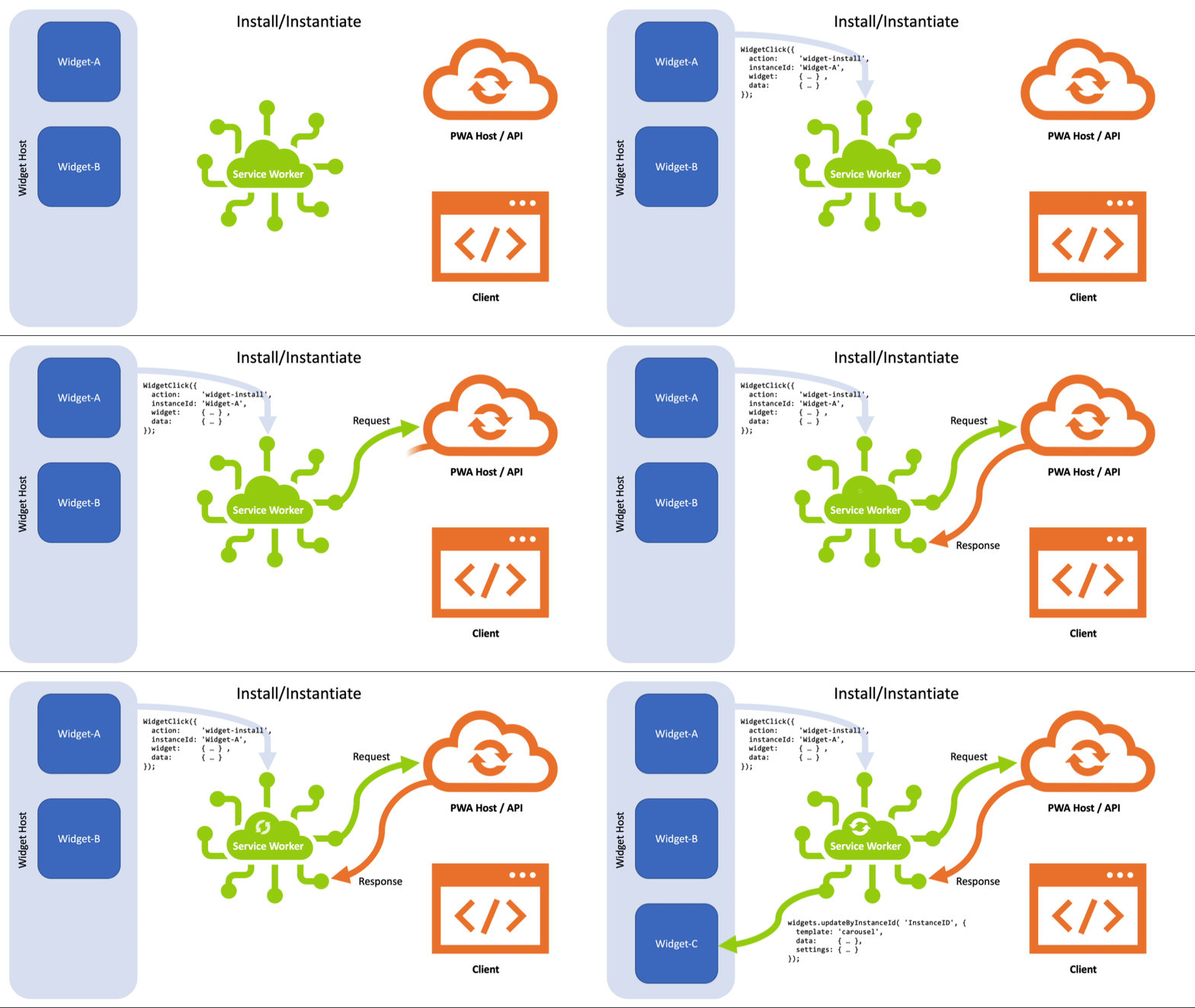
- A "widgetinstall" signal is received by the User Agent, the placeholder instance is created, and the event is passed along to the Service Worker.
- The Service Worker makes a
Requestfor thewidget.definition.dataendpoint. - The Service Worker then creates a payload and passes that along to the Widget Service via the
updateByInstanceId()method.
widgetuninstall
Required WidgetEvent data:
instanceIdwidget
The "uninstall" process is similar:
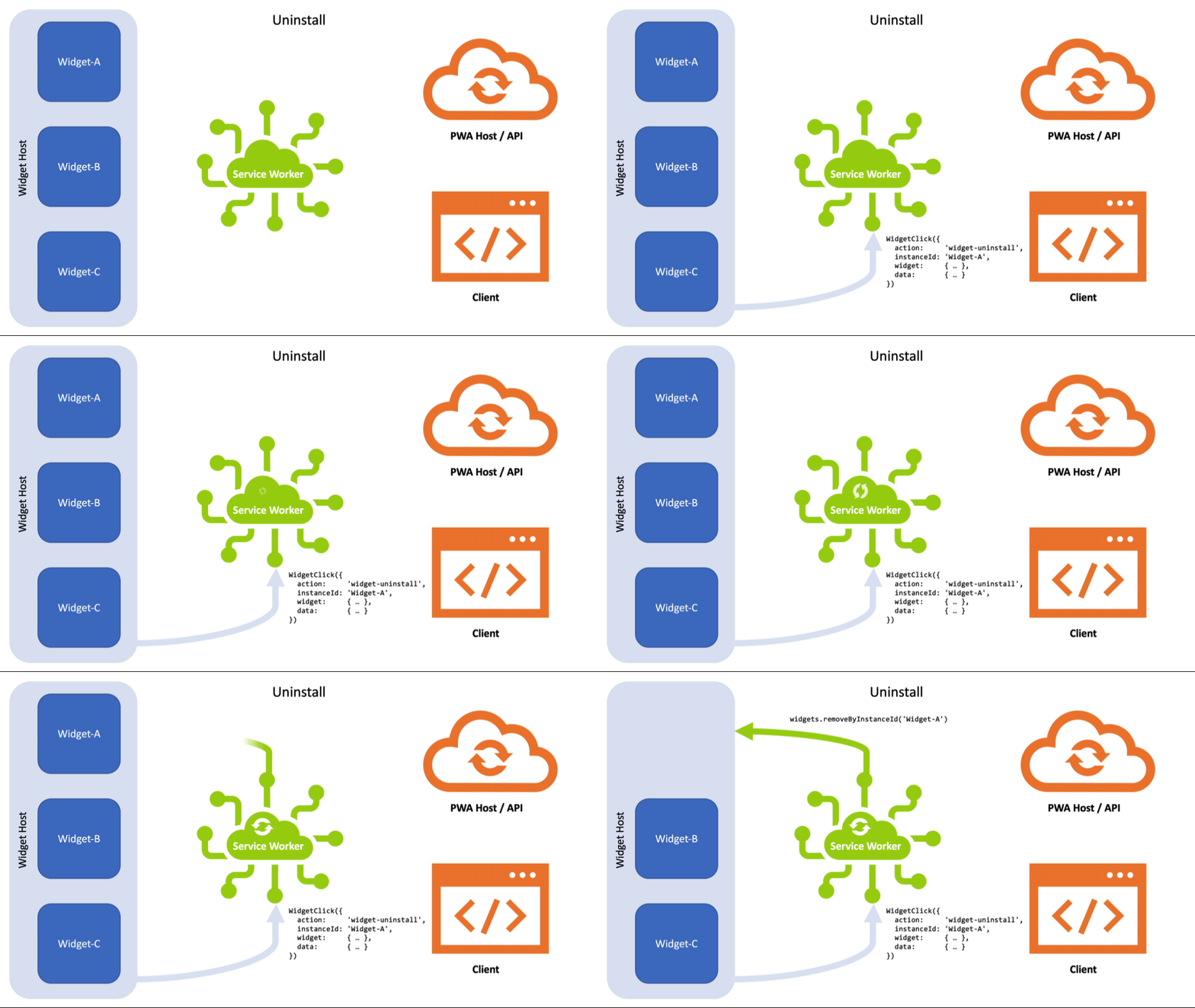
- The "widgetuninstall" signal is received by the User Agent and is passed to the Service Worker.
- The Service Worker runs any necessary cleanup steps (such as un-registering a Periodic Sync if the widget is no longer in use).
- The Service Worker calls
removeByInstanceId()to complete the removal process.
Note: When a PWA is uninstalled, its widgets must also be uninstalled. In this event, the User Agent must prompt the Widget Service to remove all associated widgets. If the UA purges all site data and the Service Worker during this process, no further steps are necessary. However, if the UA does not purge all data, it must issue uninstall events for each Widget Instance so that the Service Worker may unregister related Periodic Syncs and perform any additional cleanup.
widgetsave
Required WidgetEvent data:
instanceIdwidgetdata
The "widgetsave" process works like this:
- The "widgetsave" signal is received by the User Agent.
- Internally, the
WidgetInstancematching theinstanceIdvalue is examined to see if a. it has settings and a. itssettingsobject matches the inbounddata. - If it has settings and the two do not match, the new
datais saved tosettingsin theWidgetInstanceand the "widgetsave" event issued to the Service Worker. - The Service Worker receives the event and can react by issuing a request for new data, based on the updated settings values.
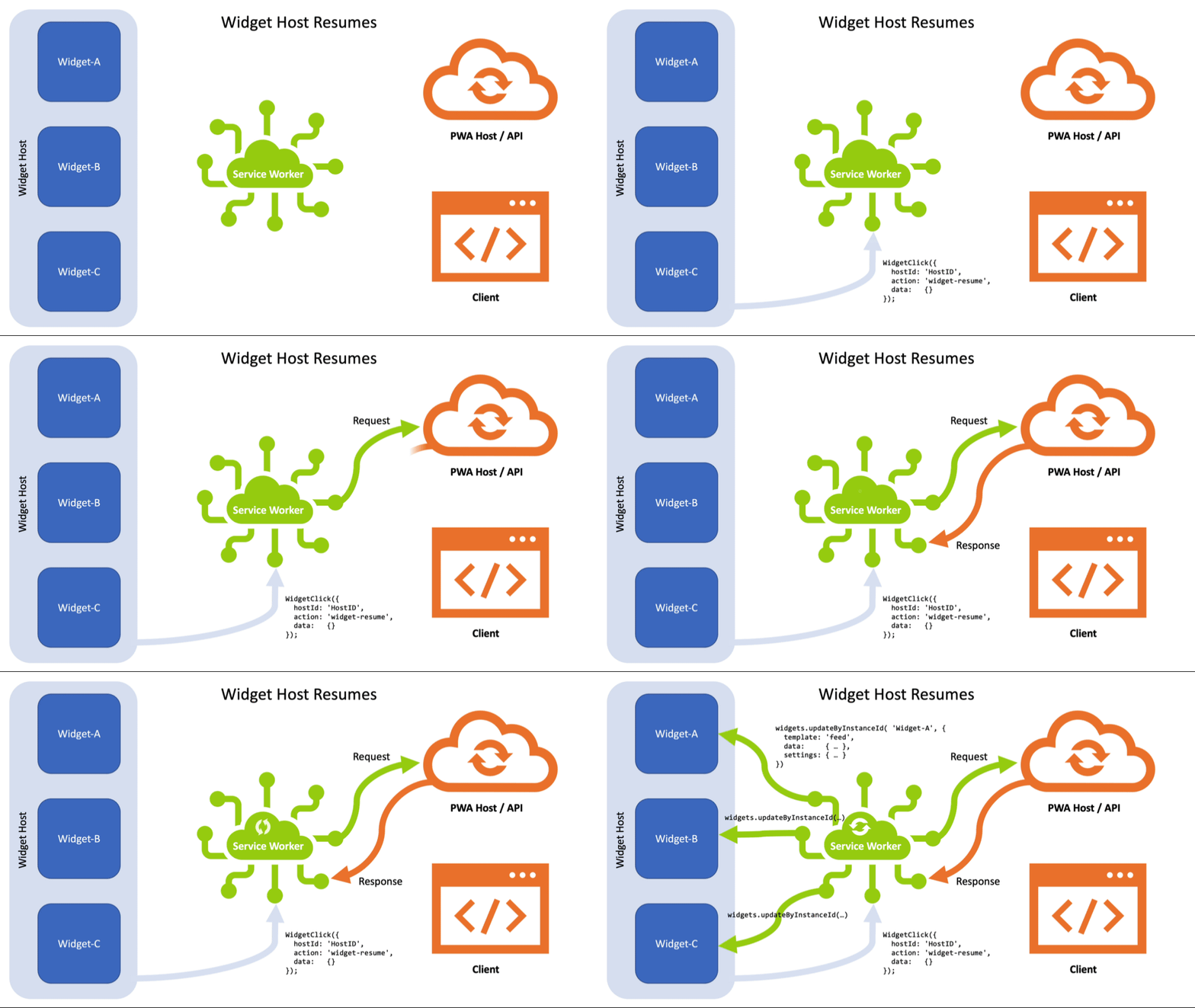
widgetresume
Many Widget Hosts will suspend the rendering surface when it is not in use (to conserve resources). In order to ensure Widgets are refreshed when the rendering surface is presented, the Widget Host will issue a "widgetresume" event.
Required WidgetEvent data:
hostId
Using this event, it is expected that the Service Worker will enumerate the Widget Instances associated with the hostId and Fetch new data for each.
WidgetClickEvent
The WidgetClickEvent is sent to the Service Worker when a user interacts (click/tap) with a Widget. The event handler of WidgetClickEvent will be capable of making clients.openWindow() to open the PWA.
A WidgetClickEvent is an object with the following properties:
action- Always required. This is the primary way to disambiguate events. The names of the events may be part of a standard lifecycle or app-specific, based on anyWidgetActionthat has been defined.data- Always required. This object comprises key/value pairs representing data sent from the Widget Host as part of the event. This could be, for example, the settings values to be saved to the Widget Instance. An empty object if no data is sent.widget- Required for widget-specific events. This is a reference to theWidget(if any) associated with the eventinstanceId- Required for widget-specific events. This is the GUID for the specific Widget Instance (if any) associated with the event.hostId- Required for host-specific events. This is the GUID for the specific Widget Host (if any) associated with the event.
A Sample WidgetClickEvent Object
{
  "action": "login",
  "widget": { },
  "instanceId": "",
  "data": { }
}
You can see a basic example of this in use in the user login video, above. There is a walk through of the interaction following that video, but here’s how the actual WidgetClickEvent could be handled:
self.addEventListener('widgetclick', (event) => {

  const action = event.action;

  // If user is being prompted to login
  if ( action == "login" ) {
    // open a new window to the login page & focus it
    clients
        .openWindow( "/login?from=widget" )
        .then(windowClient =>
          windowClient ? windowClient.focus() : null
        );
  }

});
The steps for creating a WidgetClickEvent with Widget Service Message message are as follows:
- Let event be a new WidgetClickEvent (inherits
WidgetEvent). - Run the following steps in parallel:
- Set event["data"] to a new object.
- Set event["action"] to the user action bound to message.
- Let instanceId be the id of the Widget Instance bound to message.
- Set event["instanceId"] to instanceId.
- Let widget be the result of running the algorithm specified in getByInstanceId(instanceId) with instanceId.
- Set event["widget"] to widget.
- If message includes bound data,
- Set event["data"] to the data value bound to message.
- Return event
Proactively Updating a Widget
While the events outlined above allow developers to respond to widget interactions in real-time, developers will also likely want to update their widgets at other times. There are three primary methods for getting new data into a widget without interaction from a user or prompting via the Widget Service:
Server Push
Many developers are already familiar with Push Notifications as a means of notifying users of timely updates and information. Widgets offer an alternative means of informing users without interrupting them with a notification bubble.
In order to use the Push API, a user must grant the developer the necessary permission(s). Once granted, however, developers could send widget data as part of any Server Push, either alongside pushes intended as Notifications or ones specifically intended to direct content into a widget.
Periodic Sync
The Periodic Sync API enables developers to wake up their Service Worker to synchronize data with the server. This Service Worker-directed event could be used to gather updates for any Widget Instances.
Caveats:
- This API is currently only supported in Chromium browsers.
- Sync frequency is currently governed by site engagement metrics and is capped at 2× per day (once every 12 hours). We are investigating whether the frequency could be increased for PWAs with active widgets.
Server-sent Events
Server-sent Events are similar to a web socket, but only operate in one direction: from the server to a client. The EventSource interface is available within worker threads (including Service Workers) and can be used to "listen" for server-sent updates.
Example
Here is how this could come together in a Service Worker:
const periodicSync = self.registration.periodicSync;

async function registerPeriodicSync( widget )
{
  // if the widget is set up to auto-update…
  if ( "update" in widget.definition ) {
    registration.periodicSync.getTags()
      .then( tags => {
        // only one registration per tag
        if ( ! tags.includes( widget.definition.tag ) ) {
          periodicSync.register( widget.definition.tag, {
              minInterval: widget.definition.update
          });
        }
      });
  }
  return;
}

async function  unregisterPeriodicSync( widget )
{
  // clean up periodic sync?
  if ( widget.instances.length === 1 &&
       "update" in widget.definition )
  {
    periodicSync.unregister( widget.definition.tag );
  }
  return;
}

async function updateWidgets( host_id )
{
  const config = host_id ? { hostId: host_id }
                         : { installed: true };

  let queue = [];
  await widgets.matchAll( config )
    .then(async widgetList => {
      for (let i = 0; i < widgetList.length; i++) {
        queue.push(updateWidget( widgetList[i] ));
      }
    });
  await Promise.all(queue);
  return;
}

async function updateWidget( widget ){
  // Widgets with settings should be updated on a per-instance level
  if ( widget.hasSettings )
  {
    let queue = [];
    widget.instances.map( async (instance) => {
      queue.push(updateInstance( instance, widget ));
    });
    await Promise.all(queue);
    return;
  }
  // other widgets can be updated en masse via their tags
  else
  {
    let opts = { headers: {} };
    if ( "type" in widget.definition )
    {
      opts.headers.accept = widget.definition.type;
    }
    await fetch( widget.definition.data, opts )
      .then( response => response.text() )
      .then( data => {
        let payload = {
          template: widget.definition.template,
          data: data
        };
        widgets.updateByTag( widget.definition.tag, payload );
      });
    return;
  }
}

async function createInstance( instance_id, widget )
{
  await updateInstance( instance_id, widget )
    .then(() => {
      registerPeriodicSync( widget );
    });
  return;
}

async function updateInstance( instance, widget )
{
  // If we only get an instance id, get the instance itself
  if ( typeof instance === "string" ) {
    let instance_id = instance;
    instance = widget.instances.find( i => i.id === instance );
    if ( instance ) {
      instance = { id: instance_id };
      widget.instances.push( instance );
    }
  }
  if ( typeof instance !== "object" )
  {
    return;
  }
  if ( !instance.settings ) {
    instance.settings = {};
  }
  let settings_data = new FormData();
  for ( let key in instance.settings ) {
    settings_data.append(key, instance.settings[key]);
  }
  let opts = {};
  if (  settings_data.length > 0 )
  {
    opts = {
      method: "POST",
      body: settings_data,
      headers: {
        contentType: "multipart/form-data"
      }
    };
  }
  if ( "type" in widget.definition )
  {
    opts.headers.accept = widget.definition.type;
  }
  await fetch( widget.definition.data, opts )
    .then( response => response.text() )
    .then( data => {
      let payload = {
        template: widget.definition.template,
        data: data,
        settings: instance.settings
      };
      widgets.updateByInstanceId( instance.id, payload );
    });
  return;
}

async function removeInstance( instance_id, widget )
{
  console.log( `uninstalling ${widget.definition.name} instance ${instance_id}` );
  unregisterPeriodicSync( widget )
    .then(() => {
      widgets.removeByInstanceId( instance_id );
    });
  return;
}

self.addEventListener("widgetinstall", function(event) {
  const host_id = event.hostId;
  const widget = event.widget;
  const instance_id = event.instanceId;

  console.log("installing", widget, instance_id);
  event.waitUntil(
    createInstance( instance_id, widget )
  );
});

self.addEventListener("widgetuninstall", function(event) {
  const host_id = event.hostId;
  const widget = event.widget;
  const instance_id = event.instanceId;

  console.log("uninstalling", widget, instance_id);
  event.waitUntil(
    removeInstance( instance_id, widget )
  );
});

self.addEventListener("widgetresume", function(event) {
  const host_id = event.hostId;
  const widget = event.widget;
  const instance_id = event.instanceId;

  console.log("resuming all widgets");
  event.waitUntil(
    // refresh the data on each widget
    updateWidgets( host_id )
  );
});

self.addEventListener("widgetclick", function(event) {

  const action = event.action;
  const host_id = event.hostId;
  const widget = event.widget;
  const instance_id = event.instanceId;

  // Custom Actions
  switch (action) {

    case "refresh":
      console.log("Asking a widget to refresh itself");
      event.waitUntil(
        updateInstance( instance_id, widget )
      );
      break;
    case "login":
      // open a new window to the login page & focus it.
      clients
        .openWindow( "/login?from=widget" )
        .then(windowClient =>
          windowClient ? windowClient.focus() : null
        );
      break;
    // other cases
  }

});

self.addEventListener("periodicsync", event => {
  const tag = event.tag;

  const widget = widgets.getByTag( tag );
  if ( widget && "update" in widget.definition ) {
    event.waitUntil( updateWidget( widget ) );
  }

  // Other logic for different tags as needed.
});
Open Questions
- Could the Periodic Sync frequency be increased for a domain when there are active widgets?
- Assuming a Push could carry a payload to update a widget, would the widget displaying the new content fulfill the requirement that the user be shown something when the push arrives or would we still need to trigger a notification?